|
How to apply a texture to the control surface |
  
|
|
How to apply a texture to the control surface |
|
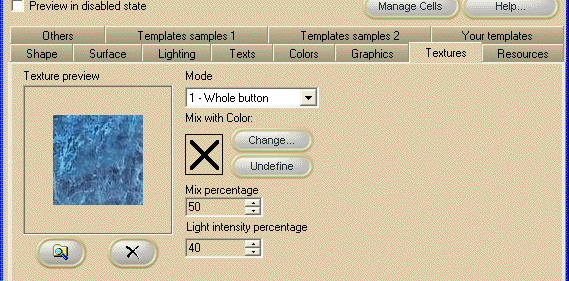
The simplest way to apply a texture over the control surface is to open, at Design-time, the 3D Button Visual Editor application from inside the Visual Studio.NET IDE as described inside the chapter Editing control properties through the 3D Button Visual Editor application contained inside the How to use the product in your projects section and selecting the editor "Texture" tab. Supported texture formats are: BMP JPG PNG Below you can see a sample of a button with a blue marble texture applied.
Note: The image below has hot links to take you to explanations of the various settings.
The Texture property is internally implemented as an "expandable object" of class TextureDesc: thanks to this "object oriented" approach, this property has a set of sub-properties that allow a better control of the texture rendering.
At Run-time the texture picture can be changed using the following methods: SetPictureFromHandle method to change the texture picture using a bitmap loaded in memory, identified by a bitmap handle.
|



 Browse button
 Delete button