|
How to create transparent Checkboxes and Radio Buttons |
  
|
|
How to create transparent Checkboxes and Radio Buttons |
|
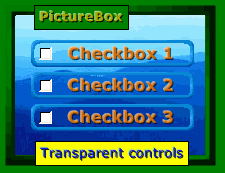
As you can see on the image below, with 3D Control Magic you have the possibility to use transparent Checkboxes and Radio Buttons:
All you have to do is to place a Ctl3dCheckBoxStandard control or a Ctl3dRadioButtonStandard control into your form or inside a Ctl3dPictureBox control and it will display its background in transparency.
Notes for using a Ctl3dPictureBox control as a container for these controls:
The PicturePosition property must be set to one of the following values: 1. PictPositions.LeftTop 2. PictPositions.Tile Although not mandatory, due to the fact that this kind of transparency for Ctl3dCheckBoxStandard and Ctl3dRadioButtonStandard controls is only simulated, the Surface property of the Ctl3dPictureBox control should be always set to Surfaces.Flat (2)..
|