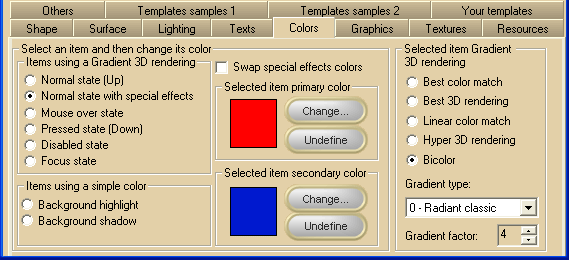
The simplest way to change the colors applied to the button's surface is to use, inside 3D Button Visual Editor, the Colors tab. At run-time each of these properties can be referenced by name.
Note: The images below have hot links to take you to explanations of the various button settings.
|
Item name
|
Description
|
Corresponding property
|
|
Normal state (Up)
|
Background color settings of the button surface in Normal state.
|
ColorSurfaceNormal
|
|
Normal state with special effects
|
Background color settings of the internal part of the button surface when a special effect has been applied (see SpecialEffect property for details about special effects).
If this color is left undefined, the ColorSurfaceNormal property settings apply.
|
ColorSurfaceInternal
|
|
Mouse over state
|
Background color settings of the button surface when the mouse pointer is over the button area.
If this color is left undefined, the ColorSurfaceNormal property settings apply.
|
ColorSurfaceMO
|
|
Pressed state (Down)
|
Background color settings of the button surface in Pressed state.
If this color is left undefined, the ColorSurfaceNormal property settings apply.
|
ColorSurfacePressed
|
|
Disabled state
|
Background color settings of the button surface in Disabled state.
If this color is left undefined, the ColorSurfaceNormal property settings apply.
|
ColorSurfaceDisabled
|
|
Focus state
|
Background color settings of the button surface when the button has the input focus.
If this color is left undefined, the ColorSurfaceNormal property settings apply.
|
ColorSurfaceFocus
|
|
Background highlight
|
The color used to highlight the raising and sunken effect on a button.
If this color is left undefined, its value is automatically calculated using the current surface color of the button.
|
HighlightColor
|
|
Background shadow
|
The shadow color of the button which applies when the button has a raised or sunken special effect.
This color is also used to render the shadow set through the ShadowMode property.
If this color is left undefined, it would be automatically calculated using the current surface color of the button.
|
ShadowColor
|
|
Swap special effect colors
|
When a special effect has been selected through the SpecialEffect property, swaps the colors set for the external and internal portions of the button's surface.
|
SwapEffectsColor
|
The properties ColorSurfaceNormal, ColorSurfaceMO, ColorSurfaceInternal, ColorSurfaceFocus, ColorSurfaceDisabled and ColorSurfacePressed are internally implemented as a COM object called SurfaceColor. In a manner consistent with object-oriented programming, each of these properties has a set of sub-properties that allow for better control of the following aspects of the Gradient 3D color rendering:
|
Item name
|
Description
|
Corresponding property
|
|
Selected item primary color
|
Color associated to the selected item
|
SurfaceColor.Color
|
|
Selected item secondary color
|
Secondary color used when the SurfaceColor.Render3DType property is set to COLOR_RENDER_2_COLORS
|
SurfaceColor.Color2
|
|
"Change..." button
|
This button will open the color choice dialog box
|
|
|
"Undefine" button
|
This button will set the color associated to the selected item to an undefined state: when the primary color is set to undefined, the selected item will use the ColorSurfaceNormal property settings.
The undefined state is represented with the  symbol in place of the color. symbol in place of the color.
|
|
|
Best color match
|
Causes the button to adopt a gradient algorithm that will maintain the chosen color characteristics
|
SurfaceColor.Render3DType set to COLOR_RENDER_BEST_MATCH
|
|
Best 3D rendering
|
Causes the button to adopt a gradient algorithm that will enhance the 3D look of the button surface
|
SurfaceColor.Render3DType set to COLOR_RENDER_BEST_3D
|
|
Linear color match
|
Causes the button to adopt a linear gradient algorithm that will maintain the chosen color characteristics
|
SurfaceColor.Render3DType set to COLOR_RENDER_LINEAR_MATCH
|
|
Hyper 3D rendering
|
Causes the button to adopt an extended 3D gradient algorithm that will further enhance the 3D look of the button surface
|
SurfaceColor.Render3DType set to COLOR_RENDER_HYPER_3D
|
|
Bicolor
|
Causes the button to adopt a 3D gradient algorithm that makes use of two colors
|
SurfaceColor.Render3DType set to COLOR_RENDER_2_COLORS
|
|
Gradient type
|
Chooses the type of gradient 3D rendering
|
SurfaceColor.GradientType
|
|
Gradient factor
|
Chooses the factor applied to the gradient 3D rendering algorithm
|
SurfaceColor.GradientFactor
|
Notes
This section focuses on the shading of the button, not the button's text. To review that topic, go to How to put text over the button.
This section doesn't cover the coloring of the following surfaces:
Vista's Aero style
Office 2003 style
Office 2007 style
|


