|
How to use Mnemonic Constants |
  
|
|
How to use Mnemonic Constants |
|
The use of Mnemonic Constants inside your code adds more readability to your code. Starting from version 7, the control implements a new internal design to the control COM's interface to expose these public enumerated types. You will see them in the drop downs on property sheets and in Microsoft's Intellisense feature. The one environment where this is not the case is Microsoft Visual C++ environment (due to the manner in which the environment communicates with the control). The following is the full list of enumerated types with their associated properties:
The following examples, under different development environments, show how to implement Mnemonic Constants in your code. These examples assume that one instance of the control, named MyButton, exists on a form or dialog box. The purpose of the code is to transform, at run-time, the shape of MyButton from Rectangular to Ellipse. Microsoft Visual C++ (4.0, 5.0, 6.0 and .NET) Microsoft Visual Basic 5 and 6
Microsoft Visual C++ (4.0, 5.0, 6.0 and .NET)
Because of the different behavior of these environments, you need to include the module 3dabm8.h in order to use predefined Mnemonic Constants: This module can be found inside the Include directory (default C:\Program files\MultiMedia Soft\3D Active Button Magic\include).
Now change the button shape using the following line of code:
MyButton.SetShape (SHAPE_ELLIPSE);
The SetShape function is defined by the control wrapper class CBtnEnh contained inside the BtnEnh.cpp and BtnEnh.h files: these wrapper files are automatically generated when you insert the control inside your project. So, in order to access this function, you will have to insert the following line of code somewhere in your code.
#include "BtnEnh.h"
The mnemonic constant SHAPE_ELLIPSE can be found inside the 3dabm8f.h module file. So, in order to access this value, you will have to insert the following line of code somewhere in your code.
#include "3dabm8.h"
Microsoft Visual Basic 5 and 6
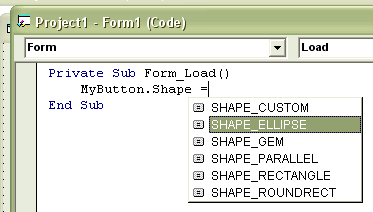
In this environment it is easy to use that Intellisense features that make it easy to assign the intended value to the Shape property. After typing the code... MyButton.Shape press the '=' character on your keyboard. Intellisense displays the listbox of the possible values that can be assigned to the Shape property
Select the SHAPE_ELLIPSE value to complete the line of code as follows: MyButton.Shape = SHAPE_ELLIPSE
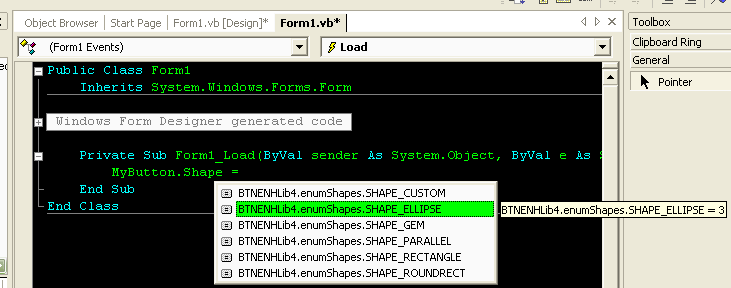
In this environment it is also easy to use that Intellisense features that make it easy to assign the intended value to the Shape property. After typing the code... MyButton.Shape press the '=' character on your keyboard. Intellisense displays the listbox of the possible values that can be assigned to the Shape property.
Select the BTNENHLib4.enumShapes.SHAPE_ELLIPSE value so the complete line of code will be: MyButton.Shape = BTNENHLib4.enumShapes.SHAPE_ELLIPSE
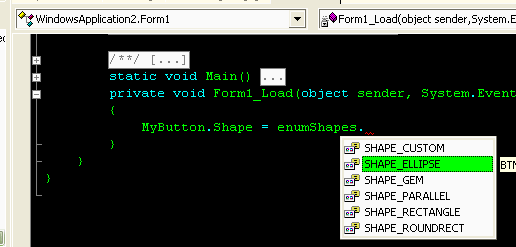
This environment requires a couple of additional lines of code to make use of Intellisense. First, the following code must be inserted at the beginning of the form management file: using BTNENHLib4; After having inserted the code MyButton.Shape To use Intellisense, you must add enumShapes after the equal sign in order to trigger the enumShapes enumerated type. After typing a period, Intellisense is activated. MyButton.Shape = enumShapes
Select the enumShapes.SHAPE_ELLIPSE value so the complete line of code will be: MyButton.Shape = enumShapes.SHAPE_ELLIPSE;
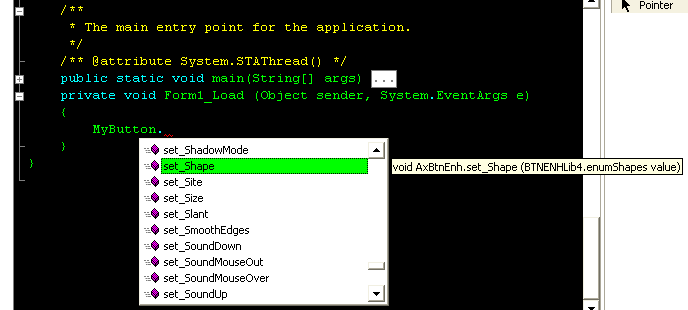
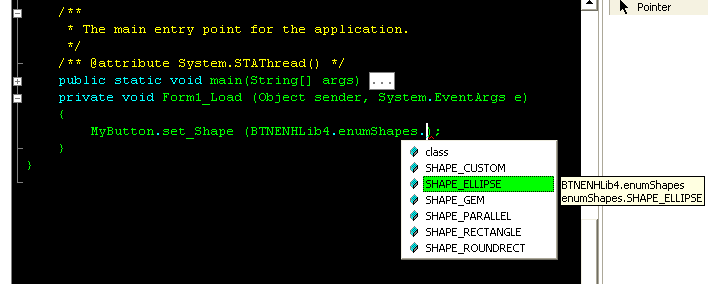
Intellisense can be used with J# as well, but with a few differences. After typing... MyButton Intellisense displays the available wrapper functions.
The tooltip on the right of the listbox shows which enumerated type can be assigned to the property. Using the tooltip as a guide, you can make the appropriate selection. MyButton.set_Shape (BTNENHLib4.enumShapes press the dot '.' character and you will see the Intellisense display the listbox of the values declared inside the enumShapes enumerated type
select the SHAPE_ELLIPSE value so the complete line of code will be: MyButton.set_Shape (BTNENHLib4.enumShapes.SHAPE_ELLIPSE);
|