|
How to render buttons over a picture |
  
|
|
How to render buttons over a picture |
|
By default, 3D Active Button Magic controls will be drawn on the solid background of the container form so they will anti-alias their borders using the background color of the container form itself: this can be an issue if the container form has a background picture instead of a solid background; you can manage this situation in two ways depending upon the need of your application:
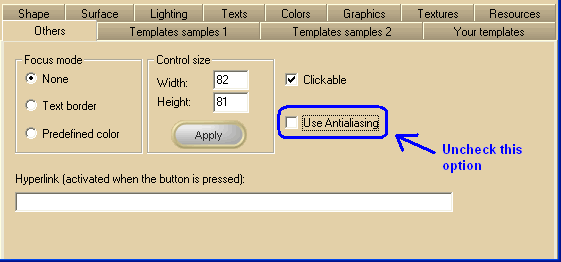
When 3D Active Button Magic controls are rendered over a picture, anti-aliasing can significantly degrade performance. In this case, it is best to disable anti-aliasing at design-time. (See the Others tab for more details)
You can also disable the use of anti-aliasing at Runtime, setting to FALSE the UseAntialiasing property.
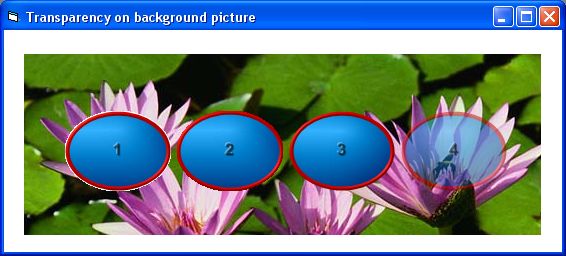
In this case we can use anti-aliasing (set by default) and, more important, we can tell the control to anti-alias with the underlying picture through the Transparent factor setting available inside the Surfaces tab of 3D Button Visual Editor; setting this value to 1, will cause the control to grab the underlying picture for an optimal anti-aliasing of its borders. Note that setting this value to higher values will raise the control transparency factor.
The mentioned Transparent factor setting can be changed at runtime through the SurfaceTransparentFactor property.
On the picture below you can see a summary of the available options:
|